Every SDODS capability in one walkthrough
Fourteen stations, in the order a team meets them. Each one has what to say, the real file to show from the demo project, the commands to run and what to point out. Use it to run a live demo, or work through it on your first day.
Before you present
Install SDODS from the install page, then run these once so the report, the web UI and the run history have data to show.
sdods init ~/my-tests && cd ~/my-testssdods run -p demo-shop -e staging -l apisdods run -p demo-shop -e staging -l ui -b chromium -t @smokesdods serveGet started
Install, run the demo project, and see how a project is described.
Install and run the demo project
One command installs SDODS. sdods init creates a workspace with a demo project, so the first run needs nothing of ours: SauceDemo for the browser, JSONPlaceholder for the API.
Point out
doctorchecks the toolchain, browsers, projects, variables and database before you start.-ppicks the project,-ethe environment,-lthe layer and-ta tag expression. Every run uses the same four flags.- The report opens on the run that just finished. Everything else on this page reads the same run data.
Run it
sdods init ~/my-tests && cd ~/my-testssdods doctorsdods run -p demo-shop -e staging -l apisdods run -p demo-shop -e staging -l ui -b chromium -t @smokesdods report --last --openA project is two YAML files
Each application is a project: one sdods.project.yaml and one file per environment. Values resolve in a fixed order, and secrets only ever arrive as ${VAR}.
projects/demo-shop/envs/staging.yamlname: staging
ui:
baseUrl: https://www.saucedemo.com
api:
baseUrl: https://jsonplaceholder.typicode.com
# For a real API:
# auth: { type: bearer, token: '${API_TOKEN}' }
users:
poolSize: 4
vars:
defaultProduct: Sauce Labs Backpack
standardPassword: '${DEMO_SHOP_PASSWORD:-secret_sauce}'
perf:
budgets: { pageLoadMs: 5000 }Point out
- The project file lists modules, browsers, routes, tags, data sources, screenshot policy, healing and processes.
- An environment file only holds what changes between environments: URLs, users, variables and budgets.
- A password is never a literal.
${DEMO_SHOP_PASSWORD:-secret_sauce}reads the environment and falls back to the public demo value.
Run it
sdods doctor -p demo-shopWrite the tests
One Gherkin language for the browser, the API and both at once.
Scenarios that read like the work
A scenario describes behaviour in plain sentences, so a product owner can review it. Every scenario carries exactly one layer tag and one suite tag, and lint enforces it.
projects/demo-shop/features/auth/login.feature@ui @auth
Feature: Login
As a shopper I want to sign in so that I can see the inventory.
Background:
Given I am on the login page
@smoke @har:login
Scenario: Successful login shows the products
When I login with "standard_user" and "{{standardPassword}}"
Then I should be on the inventory page
And the inventory title should be "Products"
@regression
Scenario Outline: Failed login shows a clear error
When I login with "<username>" and "<password>"
Then I should see the login error "<error>"Point out
- Layer tags are @ui, @api and @hybrid. Suite tags are @smoke, @regression and @sanity.
- Optional tags switch features on: @visual, @a11y, @perf, @mock, @user:<role>, @har:<name>, @jira:KEY, @skip:<browser>.
- Reuse a step before writing a new one.
steps listshows every phrasing the project already has.
Run it
sdods lint -p demo-shopsdods lint -p demo-shop --undefined-steps --strictsdods steps list -p demo-shopPage objects and locators that heal
Steps live on page objects. Each locator carries a description and its fallbacks, so when the primary one breaks SDODS can find the element another way and record what it chose.
projects/demo-shop/pages/LoginPage.ts@Fixture<typeof test>('loginPage')
export class LoginPage extends BasePage {
readonly submit = this.h(this.page.locator('#login-button'), {
description: 'login button',
role: 'button',
name: 'Login',
testId: 'login-button',
});
@Given('I am on the login page')
async open() {
await this.goto('login');
}
@When('I login with {string} and {string}')
async login(username: string, password: string) {
await this.username.fill(this.render(username));
await this.password.fill(this.render(password));
await this.submit.click();
}
}Point out
- The decorators turn methods into steps, so the feature file and the code stay one-to-one.
- Locator priority: role and name, then label, test id, placeholder, text, and CSS last. Never XPath.
- A heal is never silent.
heal reportlists the original selector, the strategy chosen, its score and the suggested locator.
Run it
sdods heal report --lastAPI tests with the shared step library
API scenarios need no code at all. The step library covers methods, status codes, JSON paths, schemas, response times and saving a value for the next request.
projects/demo-shop/features/api/posts.feature@regression @contract
Scenario: Create a post and chain its id
Given I set the variable "title" to "SDODS created this"
When I send a POST request to "/posts" with body:
"""json
{ "title": "{{title}}", "body": "hello from SDODS", "userId": 1 }
"""
Then the response status should be 201
And the response JSON path "title" should equal "{{title}}"
And the response should match the JSON schema "post"
When I save the response JSON path "id" as "postId"
And I send a GET request to "/posts/{{postId}}"
Then the response status should be one of "200, 404"Point out
save the response JSON pathstores a value;{{postId}}uses it in the next request.- The schema lives in projects/demo-shop/schemas/post.schema.json, so contract checks are one line.
- Every request and response is kept with the run, which is the API equivalent of a screenshot.
Run it
sdods run -p demo-shop -e staging -l apiHybrid: seed through the API, check in the browser
One scenario can use both layers. Create the data through the API, which is fast and reliable, then prove the user sees it in the browser.
projects/demo-shop/features/hybrid/seed-then-verify.feature@hybrid @hybrid-demo
Feature: Seed through the API, verify in the browser
@regression
Scenario: A post created through the API is rendered by the UI
Given I use a leased user with role "standard"
When I seed via POST "/posts" with body:
"""json
{ "title": "SDODS hybrid {{username}}", "body": "seeded", "userId": 1 }
"""
Then the response status should be 201
When I save the response JSON path "title" as "title"
And I mock "**/inventory.html" with HTML:
"""
<main><h1>{{title}}</h1><p>rendered from the seeded API response</p></main>
"""
And I navigate to the "inventory" page
Then the UI should show the text from JSON path "title"Point out
- The API client and the page share one set of fixtures and variables.
- Seeding through the API instead of clicking through set-up screens keeps scenarios short and independent.
- The two demo sandboxes are unrelated, so the demo mocks the page to render the seeded title. Against your own app the mock goes away.
Run it
sdods run -p demo-shop -e staging -l hybrid -b chromiumTest data and user pools
Data comes from CSV, JSON, YAML, database tables or faker factories, per environment. Users come from a pool: each parallel worker leases its own account and reuses its saved sign-in.
projects/demo-shop/features/auth/data-driven-login.feature@ui @auth @data-driven
Feature: Data-driven login
@regression
Scenario: Login with the user whose role is problem
Given I load dataset "users" where "role" is "problem"
And I am on the login page
When I login with "{{username}}" and "{{password}}"
Then I should be on the inventory page
# projects/demo-shop/features/auth/user-pool.feature
@sanity @user:standard
Scenario: A leased standard user starts logged in through cached storage state
Given I navigate to the "inventory" page
Then I should be on the inventory pagePoint out
data/{env}/users.csvis read first, withdata/common/users.csvas the fallback.@user:standardleases a standard account and starts the scenario already signed in.- Two workers never share an account, so parallel runs do not trip over each other.
Run it
sdods data list -p demo-shopsdods data preview projects/demo-shop/data/common/users.csvMocks, HAR replay and recording
When a backend is slow or unstable, mock a route or replay recorded traffic. When you do not know where to start, record a session in the browser and convert it into a scenario.
projects/demo-shop/features/inventory/network-intercept.feature@ui @inventory @mock
Feature: Network interception
@regression
Scenario: A mocked page is rendered instead of the real one
Given I mock "**/mocked/**" with HTML:
"""
<h1 data-test="banner">Mocked by SDODS</h1>
"""
When I navigate to the "/mocked/banner.html" page
Then I should see the text "Mocked by SDODS"Point out
@har:productsties a scenario to a recording.--strictfails on any request that is not in the file.- The pr-check process replays HAR files, so pull requests do not depend on a live backend.
recordopens a browser signed in as a pool user;record convertturns the result into steps.
Run it
sdods har record -p demo-shop -e staging -t @har:productssdods har replay -p demo-shop -e staging --strictsdods record -p demo-shop -e staging --name checkout --user standardKeep the proof
What a run leaves behind, and how it turns into release confidence.
Evidence for every step
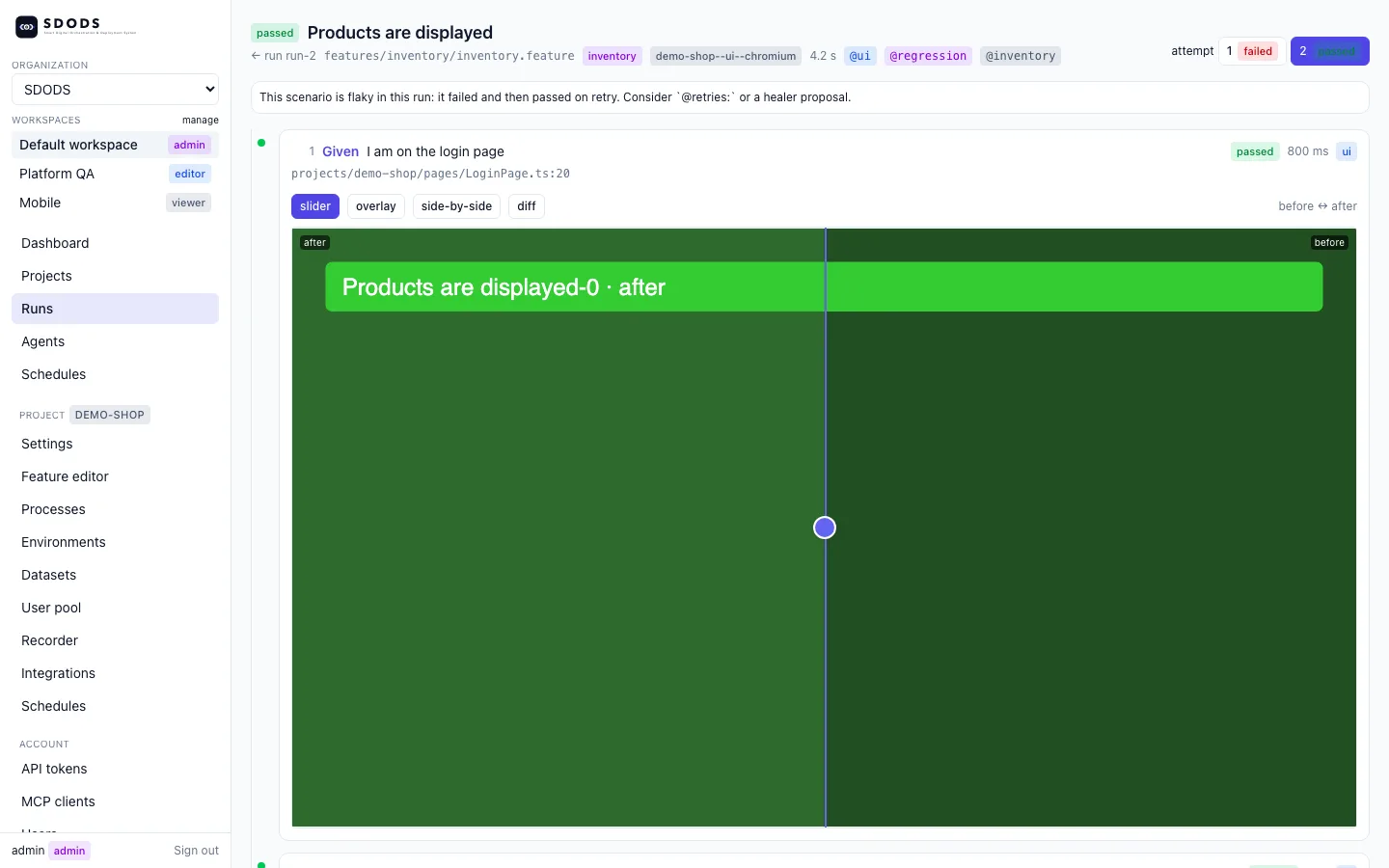
This is the reason SDODS exists. A screenshot before and after each UI step, the requests behind each API step, and one place where anyone can look at a release and say yes.
Point out
- The screenshot policy is chosen per suite tag: @smoke keeps one per scenario, @regression one per step.
- Every run is a folder of NDJSON events and images, so CI artifacts and the web UI read the same thing.
servestarts the web UI with the dashboard, run history and the before and after viewer.
Run it
sdods report --last --opensdods serveVisual, accessibility, performance and load
The same scenarios check more than function. One tag adds a pixel baseline, an axe audit or a performance budget, and load profiles reuse the project to put traffic on the API.
projects/demo-shop/features/inventory/visual.feature@ui @inventory @visual
Feature: Inventory visual baseline
@regression
Scenario: Inventory page matches its baseline
Given I am on the login page
And I login with "standard_user" and "{{standardPassword}}"
Then I should be on the inventory page
And the page should match the visual baseline "inventory"Point out
- Baselines are kept per browser and platform. A change is reviewed with
diffand accepted on purpose. - @a11y audits the final page against WCAG 2.x A and AA and fails on serious violations.
- @perf records each page’s vitals and judges them against
perf.budgetsin the project and environment files.
Run it
sdods baselines diffsdods baselines accept inventory --run <runId>sdods load -p demo-shop -e staging posts --dry-runRun history that remembers
Results land in SQLite or Postgres. Over time that history shows which scenarios are flaky, which locators are fragile and which environments are unstable.
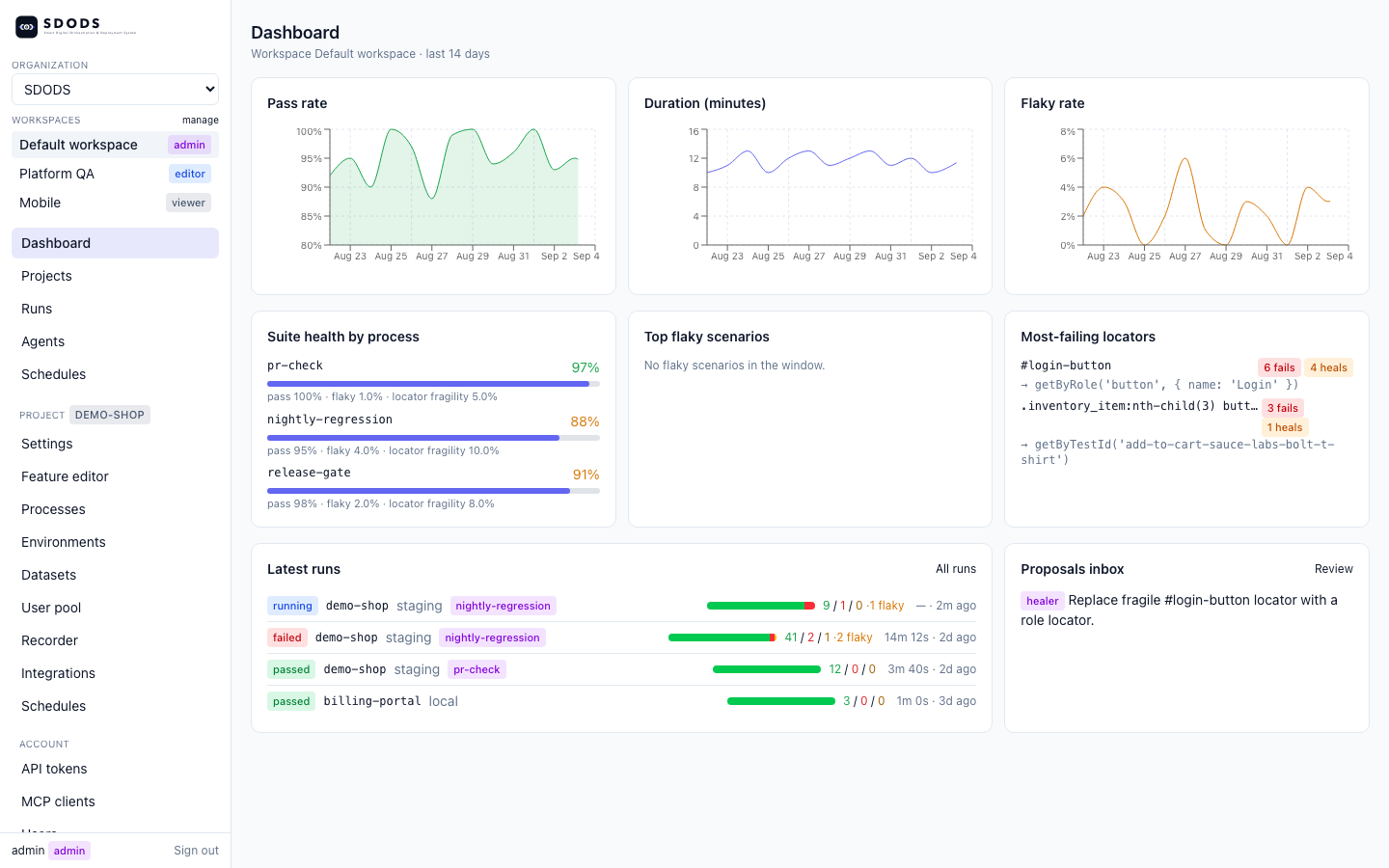
sdods serve, built from the run history.Point out
- A scenario that passes and fails on the same code is flagged as flaky, not hidden by a retry.
- Fragile locators are the ones that keep needing a heal. Fix those first.
Run it
sdods insights compute -p demo-shop --window 30sdods insights show -p demo-shopRun them anywhere
Every browser, every pipeline, on a schedule.
Every browser you ship to
Chromium, Edge, Firefox, WebKit and mobile emulation. One flag runs the whole matrix, and a scenario that cannot run on one browser says so with a tag that lint checks.
projects/demo-shop/features/inventory/inventory.feature@regression @skip:webkit
Scenario: Open the menu (browser-specific exclusion example)
When I click the "Open Menu" button
Then the "Logout" link should be visiblePoint out
-bpicks one browser;--project-matrixruns every browser the project declares.- Tags such as @device:<name>, @viewport:<W>x<H>, @locale and @theme set the browser context per scenario.
Run it
sdods run -p demo-shop -e staging --project-matrix -t "@smoke or @sanity"sdods run -p demo-shop -e staging -l ui -b chromium -t @smokeCI, gates, sharding and schedules
CI is just the CLI. A process is a named run recipe with gates; the exit code tells the pipeline whether the release may go. Big suites split into shards and merge back into one report.
projects/demo-shop/sdods.project.yamlprocesses:
- name: pr-check
trigger: pr
tags: '@smoke'
browsers: [chromium]
harMode: replay
gates: { minPassRate: 100 }
- name: release-gate
trigger: release
tags: '@smoke or @regression'
browsers: [chromium, firefox, webkit]
failOnFlaky: true
gates: { minPassRate: 100, maxFlaky: 0, perfBudgets: true, a11y: true }Point out
- Each pipeline stage runs a suite: @smoke on pull requests, @regression nightly, both at release.
- Schedules run from the SDODS server, crontab, systemd or GitHub Actions.
- Failures can open deduplicated GitHub or Jira issues, and @jira:KEY links a scenario to a ticket.
Run it
sdods run -p demo-shop --process pr-checksdods run -p demo-shop -e staging -b chromium --shard 1/3 --run-id gh-123 --reporter blobsdods schedule add -p demo-shop --name nightly --cron "0 2 * * *" --tz America/New_York -t @regression -b chromium -b firefox --notify githubsdods schedule install --target githubWork with AI
Agents do the typing; people decide what goes in.
Agents and MCP: propose, review, accept
SDODS is an MCP server with 86 tools, so Claude Code, Codex, Cursor, VS Code or Gemini CLI can plan, write, run, heal and review tests. Agents never change files: they write proposals, and a person accepts them.
Point out
- Five agents: planner, generator, healer, upgrader and reviewer.
- Agents use your signed-in AI CLI, so no API key is needed. Sign in to Claude Code or Codex before the demo, or run
sdods agent generate -p demo-shop --goal "login" --dry-run --adapter fake. - A proposal is a folder with the files and a diff. Accepting it runs lint and can put it on its own branch for a pull request.
analyzereads an existing application and scaffolds a project for it, which is the fastest way to onboard a new app.
Run it
sdods mcp install claudesdods agent plan -p demo-shop --goal "checkout with a discount code"sdods proposals listsdods proposals accept <id> --branch sdods/<id>sdods analyze ../my-app --apply --slug my-appRules every team member follows
The walkthrough shows what SDODS can do. These six rules are how the team keeps a suite that stays fast and trustworthy as it grows.
- Two tags, always
- Exactly one layer tag and exactly one suite tag on every scenario.
- Reuse steps first
- Search the step library before adding a phrasing. New steps match the old style.
- Stable locators
- Role and name first, CSS last, never XPath.
- Independent scenarios
- No sleeps, no order between scenarios. Seed through the API and clean up.
- No secret literals
- Credentials arrive as ${VAR} and never appear in a feature, a page or a log.
- People accept changes
- Agents propose. A person reviews and runs
sdods proposals accept.
After the demo
A new team member is ready to write tests once they have done these, in this order.